logoSpreadsheet-xlsx&csv editor
Home
Recommendationicon
Downloadicon
Explore AITutorial Center
Login/Register
iconVIP
icon
Spreadsheet editor app interface

Free Online Spreadsheet Editor with AI Tools

mastering spreadsheet tasks with ease
Data Management · Sync Collaboration · AI
Buy Now

Money Back Guarantee

User ratings:
(84,000+ reviews)

Real Reviews from Millions of Users

icon
Editor’s choice

110w+ Downloads

Downloads
icon
Editor’s choice

Work anywhere

Stay productive beyond the office

Capture every record

Track data and organize life

Create in one tap

Build the templates you need with ease

Beautiful templates
quick editing

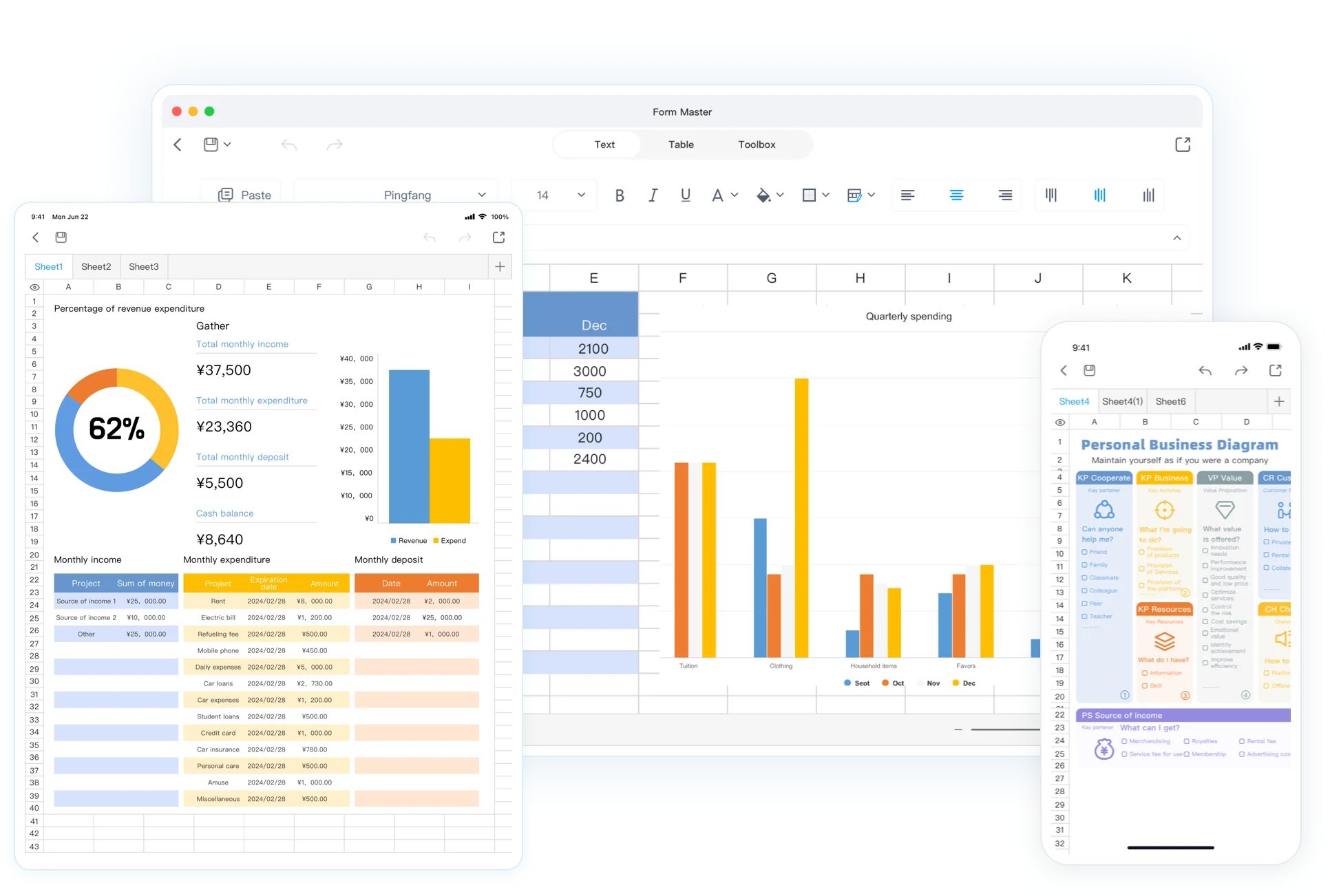
Choose a polished template, enter your data, and customize it to match your workflow. Adjust fonts, borders, rows, columns, images, and ready-made styles in just a few steps.
More
Simple calculations extraordinary arithmetic

Simple calculations
extraordinary arithmetic

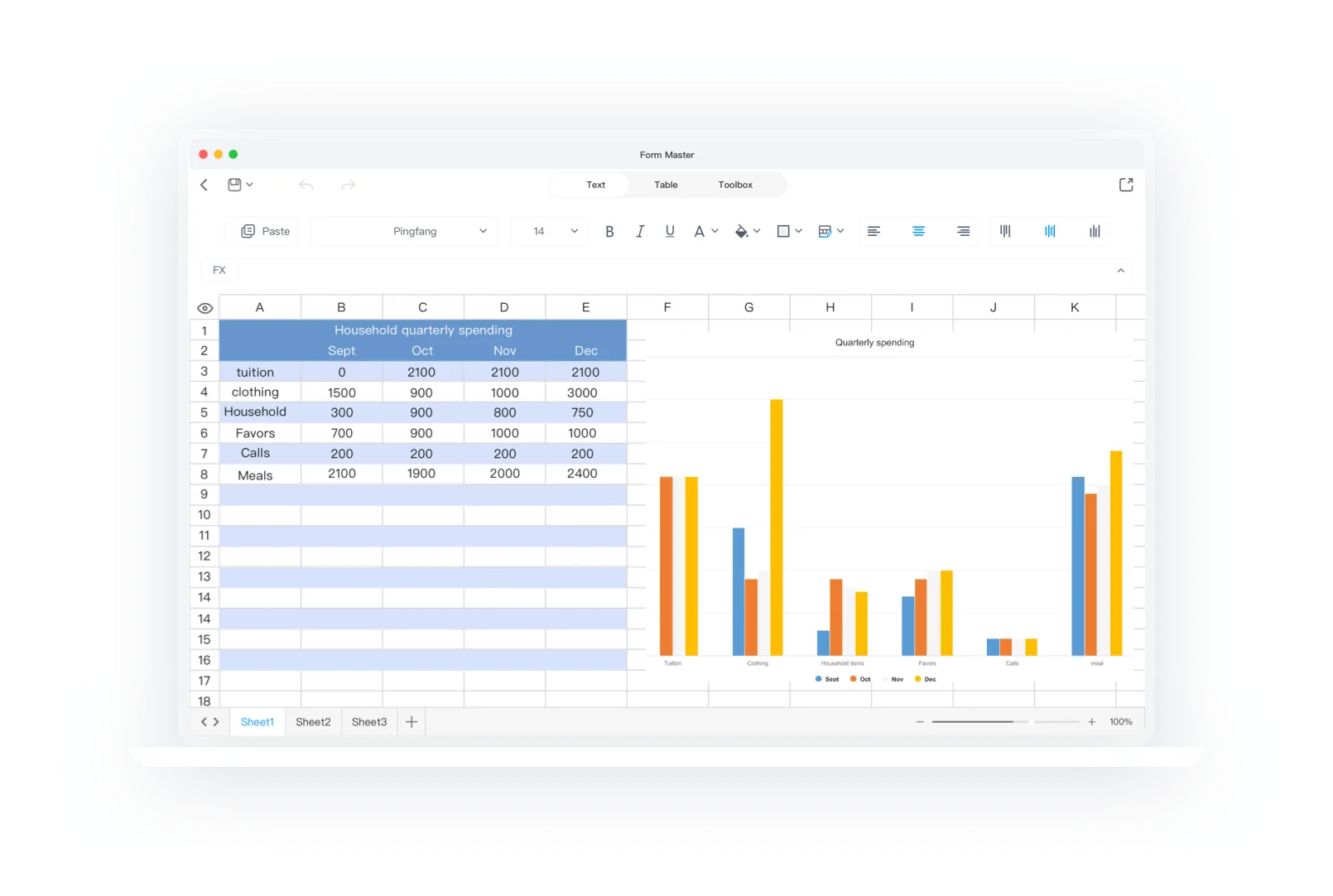
Use an intuitive calculation workspace with sum, average, max, min, and other common operations. Pair it with charts to spot trends faster and make better decisions across iPhone, iPad, and Mac.

Smart assistance
AI companion

From data cleanup to chart building and formula help, our AI assistant handles repetitive work quickly and accurately so you can focus on higher-value tasks and decisions.

Smart assistance AI companion
Multi-platform synchronization collaborative anytime

Multi-platform synchronization
collaborative anytime

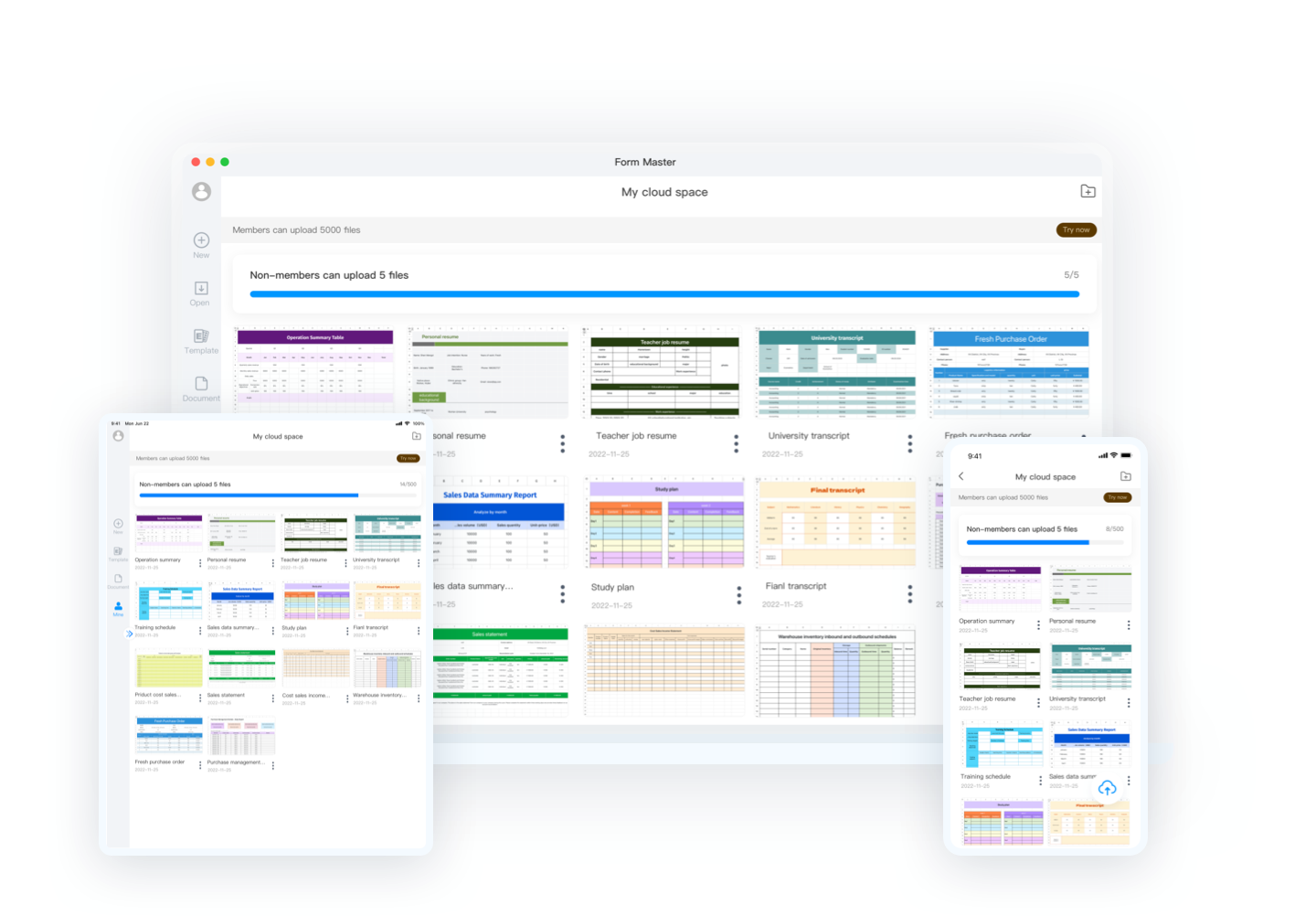
Upload, edit, and share files through cloud space with real-time collaboration. Work smoothly across iPad, iPhone, and Mac whenever your team needs it.

Work with spreadsheets and AI tools in one place

FormMaster brings practical spreadsheet editing, reusable templates, formulas, charts, filters, sorting, conditional formatting, and AI-assisted workflows into one place. Start with a supported spreadsheet or a new sheet, keep the structure readable as data changes, and use the right workflow for planning, study, reporting, or team coordination. Filter a long list to examine a relevant subset, sort records to compare values or dates, and use conditional formatting to make a threshold, deadline, or exception easier to scan. Build formulas in small, understandable stages and give calculated columns clear labels so a future reviewer can check the work. When an imported workbook contains important formulas or specialized formatting, inspect representative cells, totals, and a saved copy before you rely on the result. The goal is not to replace review: it is to make routine spreadsheet work easier to understand, update, and continue.

Open and organize everyday spreadsheets

Start with a supported spreadsheet or a new sheet, then keep values, headers, rows, and columns readable as the task evolves. A consistent structure makes a work list, study tracker, or planning sheet easier to update and explain.

Calculate results you can review

Use common formulas and calculations to turn repeated values into totals and summaries. Review the relevant cells before using a result in a decision, report, or handoff, especially when the source workbook came from another spreadsheet program.

Use templates for repeatable work

A template gives a recurring task a useful starting structure. Replace example data, keep meaningful headings, and adapt the layout so the next budget, schedule, record, or checklist begins from a reliable sheet instead of a blank file.

Explain numbers with tables and charts

When a visual check helps, use tables and charts to review trends, totals, and exceptions. Charts work best after the source data and calculation cells have been checked, so the visual summary supports a clear conversation rather than hiding a data issue.

Keep work moving across devices

Continue a spreadsheet workflow across supported Windows, macOS, iOS, and Android versions. Keep a clear current version so routine updates do not create disconnected copies that are difficult for you or a teammate to reconcile later.

Use AI as a careful spreadsheet assistant

AI tools can help draft a formula idea, organize a first pass, or prepare an explanation for a dataset. Treat generated output as a starting point: verify inputs, calculations, dates, and conclusions before putting them into a working spreadsheet or report.

Support work, study, and shared records

Use the same spreadsheet habits for project lists, personal budgets, class records, simple reports, and team coordination. Begin by agreeing on the fields people need to update, then use filters and sorting to review records without losing the original table structure. Apply conditional formatting only when a visible rule will help people notice a deadline, duplicate, missing value, or outlier; do not make color the only explanation for an important status. Clear labels, a short note about the source or update date, repeatable review steps, and a maintainable layout make a sheet more useful long after the first edit. For shared records, decide who checks key calculations and when a change is ready for the next person.

FormMaster vs Excel, Google Sheets, and LibreOffice Calc

Microsoft Excel, Google Sheets, LibreOffice Calc, and FormMaster support different spreadsheet workflows. Microsoft Excel may suit desktop-first workbooks or organization-specific Excel processes; Google Sheets may suit teams already working in its browser-based sharing model; and LibreOffice Calc may suit an offline desktop workflow. FormMaster is a practical option when you want supported spreadsheet editing, reusable templates, formulas, charts, filters, sorting, conditional formatting, AI-assisted tools, and a multi-device browser workflow in one place. Each choice involves trade-offs in file compatibility, collaboration, privacy, access, advanced features, and how a team will maintain the workbook. Do not assume one tool is right for every file: list the tasks people repeat, identify the formulas and formatting that matter, confirm current product details, and test a representative non-sensitive workbook before moving important work. Keep an export path and a source copy for business-critical sheets.

Frequently asked questions

Which spreadsheet files can I work with in FormMaster?

FormMaster supports creating and editing common spreadsheets online, including Excel files.

Which devices can I use FormMaster on?

Use the Windows, macOS, iOS, or Android version to continue working with spreadsheets across your devices.

What can I use FormMaster for?

Use it for work, study, data organization, and team collaboration with templates, formulas, and AI-assisted tools.

Can I use formulas and charts?

Use common calculations and formulas to summarize data, then use tables or charts when they help you review trends, totals, or exceptions.

How do spreadsheet templates help?

Templates provide a starting structure for repeatable tasks. Replace sample values, adjust labels and calculations, and keep the reviewed sheet ready for the next update.

How should I use AI tools with spreadsheet work?

Use AI-generated suggestions as a starting point for formulas, organization, or explanations, then verify the inputs, calculations, dates, and conclusions before relying on them.

Can a spreadsheet support team coordination?

A clear shared structure can support handoffs and recurring updates. Keep headers, ownership notes, and review steps understandable so the next person can continue the work safely.

Is an online spreadsheet editor right for every task?

Choose the workflow that matches the task. Review compatibility and feature needs for important workbooks, especially when they contain advanced formulas, formatting, or program-specific features.

More features await your exploration